You do not need a paid rank tracker to know where your pages stand on Google. Google Search Console already has this data, for free, and it is more accurate than most third-party tools because it comes straight from Google's own index. The catch is that GSC does not have an obvious "keyword ranking" button. You have to know which report to open, which filter to apply, and which number to actually trust.
This guide walks through the exact clicks to find a specific keyword's ranking in Search Console, why "Average Position" is not quite what most people assume it means, and a five-minute weekly habit that catches ranking drops before they become traffic drops.
Where keyword rankings actually live in Search Console
Search Console does not use the word "ranking" anywhere in its interface. It uses "Average Position," and it lives inside the Performance report, not inside "Search Console tools" or a settings menu (this trips up more people than anything else on the page).
To get there:
- Open Google Search Console and select the property for your domain.
- Click Performance in the left-hand sidebar (the chart icon near the top).
- Above the graph, click the metric toggles and make sure Average CTR and Average Position are both switched on. By default, Search Console only shows Clicks and Impressions, which is why the ranking data feels hidden.
- Scroll down to the table beneath the graph and click the Queries tab. This table is the actual keyword list. Each row is a search query, with its clicks, impressions, CTR, and average position for the date range selected.
That table is your keyword-ranking report. <mark class="km-highlight" style="--hl:#FEF08A;background:#FEF08A">There is no separate page for it</mark>.
How to check the ranking for one specific keyword
If you only care about a single term, do not scroll through hundreds of rows looking for it.
- In the Performance report, click + New above the graph.
- Choose Query, then select Custom (regex) or Exact match.
- Type the exact phrase (for example,
google search console keyword ranking) and apply the filter. - The graph and table now isolate that one query. The Queries table's Position column, filtered this way, shows the average position for that keyword over the selected date range.
Two details matter here:
- The date range changes the answer. GSC defaults to the last three months. A keyword can show position 14 over three months while sitting at position 8 for the most recent week, because the average blends old and new data. Narrow the range to the last 7 or 28 days for a truer current picture.
- A page can rank for a query in more than one way. If a query surfaces both a normal blue link and something like an FAQ rich result or a video carousel, GSC records an impression for each surface, which can pull the average position around. This is one of the reasons GSC's own numbers occasionally look "off" compared to what you see when you personally Google the term.
Why "Average Position" is not what most people think it means
This is the gap between what the top few tutorials on this topic actually explain and what people need to know before they act on the number.
Average Position is the average rank across every impression Search Console recorded for that query, at whatever position the page happened to appear, personalized or not, desktop or mobile, across every user Google served it to. <mark class="km-highlight" style="--hl:#BBF7D0;background:#BBF7D0">It is not "your rank right now if you searched it yourself."</mark> A page can show position 6.2 in GSC while a private/incognito search shows it at position 9, because GSC's number blends results across different users, locations, and devices, some of which see a more favorable SERP than others (localized results, personalization, or A/B-tested layouts).
Practically, this means:
- Treat GSC's position as a trend signal, not a literal live snapshot. Is it moving up or down over the last 90 days? That trend is trustworthy even if the single-day number is not.
- If you need to confirm exactly what a real, logged-out searcher sees today for a specific query, pair the Performance data with the URL Inspection tool (also inside Search Console) or a manual incognito search, rather than treating Average Position as gospel.
- Don't panic over daily swings. A jump from 8.1 to 11.4 for one day is often noise (a handful of unusual impressions), not a lost ranking. Look for the pattern to hold for a week or more before you act.
Filtering for the keywords worth acting on
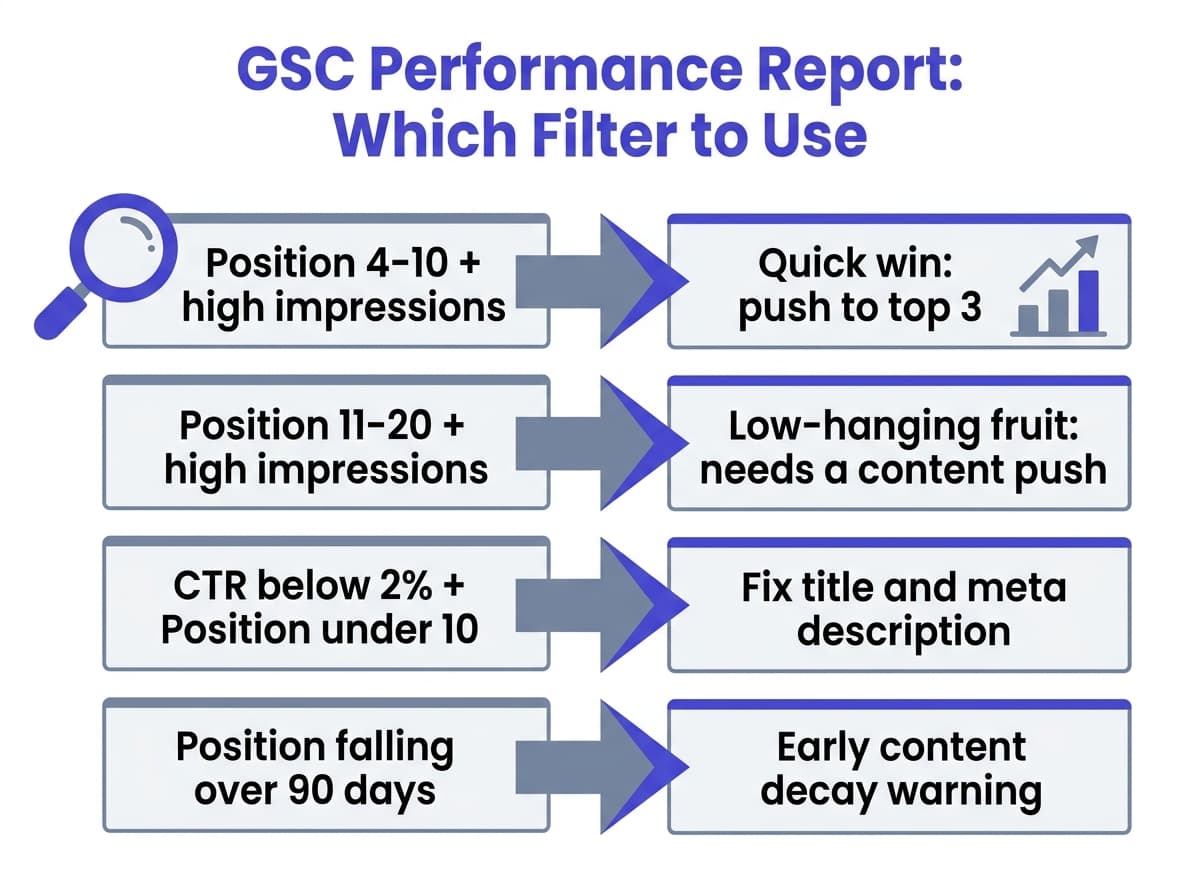
Most guides stop at "here's how to see your queries." The more useful skill is filtering that list down to the handful of keywords actually worth spending time on. Apply these filters in the Performance report (via + New > Position, CTR, and Impressions):
| Filter combination | What it finds | Why it matters |
|---|---|---|
| Position 4-10, sorted by Impressions (high to low) | Page-one keywords stuck just below the fold | These are the closest wins: a small on-page or internal-link push can move them into the top 3, where the bulk of clicks happen |
| Position 11-20, sorted by Impressions | "Page two" keywords Google already considers relevant | You are one content or authority signal away from page one; often the best return on effort in the whole report |
| CTR below 2%, Position under 10 | Pages ranking well but not getting clicked | Usually a weak title tag or meta description, not a ranking problem at all |
| Position rising over 90 days (compare two date ranges) | Keywords with real upward momentum | Worth reinforcing with an internal link or a content refresh while the momentum is there |
| Position falling over 90 days for a query that used to rank top 10 | Early content decay | The earliest warning sign of a page that is about to lose its traffic, well before Analytics shows the drop |
The last two rows are where GSC's built-in interface runs out of road. It shows you the current table, but comparing "this quarter versus last quarter" for hundreds of queries by hand, every week, is exactly the kind of manual audit most people give up on after a month or two.
Exporting the data for a deeper look
For anything beyond a quick check, export the table:
- In the Performance report, with your filters applied, scroll down to the Queries table.
- Click Export (top right of the report) and choose Google Sheets, Excel, or CSV.
- In a spreadsheet, sort by Position and Impressions together to spot the "low-hanging fruit" pattern: <mark class="km-highlight" style="--hl:#FEF08A;background:#FEF08A">high impressions, position 4-15, low CTR</mark>. That combination is the single highest-leverage filter in the whole report, because it flags pages Google already trusts enough to show on page one, that just are not converting the visibility into clicks yet.
If you manage more than a handful of pages, this export becomes the bottleneck: someone has to do it, filter it, and repeat it weekly to catch drops early. That manual cycle is exactly the gap Murkuz's Google Search Console integration is built to close. It connects to GSC directly, pulls the same Performance data automatically every day, and flags keyword-level ranking declines and position 11-20 opportunities the moment they show up, rather than three months later when someone finally reopens the export.
A repeatable weekly check (5 minutes)
Once the filters above are set up, checking rankings becomes a five-minute habit instead of a monthly project:
- Open Performance, set the date range to Last 28 days compared to previous 28 days.
- Sort the Queries table by the position change column (GSC shows the delta when you compare two periods).
- Scan the top movers in both directions. Rising queries: consider reinforcing with an internal link. Falling queries that used to sit in the top 10: open the page and check for anything obviously stale (outdated stats, a broken link, a competitor that recently published something more thorough).
- Repeat the "position 11-20, sorted by impressions" filter once a week to catch new low-hanging fruit as your content ages into relevance.
This is the same detect-then-fix loop that Murkuz's workflow automates end to end: it runs this exact GSC scan daily, turns a declining query into a task with the specific keywords and traffic impact attached, and then verifies with GSC data again after the fix goes live to confirm the ranking actually recovered. If you are doing the check manually, doing it weekly on a fixed day (put it on a calendar) is what actually makes people stick with it past the first month.
Common mistakes people make with this data
- Assuming "position 1" in GSC means the #1 organic spot. It can include positions occupied by ads-adjacent features, image packs, or other SERP elements included in that query's impressions, so a very low average position number doesn't always mean a classic blue-link #1.
- Comparing GSC position to a rank tracker's number and assuming one is "wrong." They measure different things. A rank tracker checks from one fixed location and device at a scheduled time. GSC averages every real impression Google served. Both can be correct and still disagree.
- Only checking rankings after traffic has already dropped. By the time Analytics shows a dip, the position has usually been declining for weeks. Checking Queries filtered by "falling position" catches it earlier.
- Ignoring branded queries when judging content performance. If your brand name is mixed into the Queries table, it can make a page look like it is "ranking well" when the non-branded, actually-competitive keywords are the ones slipping. Filter queries to exclude your brand name when judging true content SEO performance.
FAQ
Can I see historical keyword rankings in Google Search Console, or only current ones?
Search Console stores roughly 16 months of Performance data. You can set any custom date range within that window and compare two periods side by side (for example, this month versus the same month last year) to see how a keyword's position has moved over time.
Why does my keyword ranking in Search Console not match what I see when I Google it myself?
Your personal search is one snapshot from one location, device, and (if logged in) personalization profile. GSC's Average Position is the average across every real impression Google served for that query, which includes different users, locations, and devices. Both numbers can be accurate and still differ.
Does Google Search Console show competitor keyword rankings?
No. GSC only reports data for properties you have verified ownership of. It cannot show what a competitor ranks for. For that, you need a separate keyword-research or competitive-analysis tool that crawls the public SERPs rather than a property's own Search Console data.
How often does Search Console update ranking data?
Performance data typically has a 1 to 3 day lag before it appears, and Google recommends treating the most recent 2 to 3 days of data as incomplete or provisional. For a stable read on where a keyword currently sits, look at a rolling 7 or 28-day window rather than yesterday alone.
Is there a limit to how many keywords Search Console tracks?
The Performance report UI displays up to 1,000 rows per view, though the underlying export (via the API or bulk export) can return more. For most sites under a few hundred pages, this ceiling is rarely the bottleneck; the bigger constraint is the manual time it takes to filter and act on the list every week.
If a five-minute manual check every week feels sustainable, the steps above cover everything you need with the free tool you already have access to. Once ranking checks need to happen daily, across more than one site, or automatically turn into a task the moment a page slips, that is the point where a connected system like Murkuz starts to save more time than it costs.
Written by Junaid Khalid, founder of Ertiqah and builder of Murkuz. He has run SEO as the first growth channel across his own SaaS products.