Paste a URL into the search bar at the top of Google Search Console and you get a verdict: indexed or not, and a pile of technical detail underneath it. Most people read the headline and close the tab. That is a mistake, because the fields underneath the headline are where the actual diagnosis lives.
The URL Inspection tool is the closest thing you get to seeing your page the way Googlebot sees it: what it crawled, what it rendered, which canonical it picked, and whether today's live version fixes what the last crawl saw. This guide goes field by field, tells you what each one actually means, and gives you the specific fix for each common problem it surfaces.
What the URL Inspection Tool Actually Shows You
Open Search Console, paste a full URL into the inspection bar at the top, and press enter. You will get one of two results:
- URL is on Google. The page is indexed and eligible to appear in search results.
- URL is not on Google. The page is not indexed, and Search Console will tell you roughly why.
That headline is the least useful part of the report. The real information sits in two sections underneath it: Page indexing (what happened the last time Google crawled the page) and Live test (what happens if you ask Google to check the current version right now).
Here is what each field in the Page indexing section means and what to do when it flags a problem.
| Field | What it tells you | What to do if it's a problem |
|---|---|---|
| Discovery | How Google found the URL: a sitemap, a referring page, or "not reported" | If a page you care about was never found, add it to your sitemap and link to it from an already-indexed page |
| Last crawl | The exact date and time of Google's most recent crawl | If this is old and the page changed since, run a live test and request indexing |
| Crawled as | Which Googlebot user agent crawled it (usually mobile) | Mismatched rendering issues often trace back to what this bot saw vs. what a desktop visitor sees |
| Crawl allowed? | Whether robots.txt permits crawling this URL | "No: blocked by robots.txt" means fix the robots rule, not the page content |
| Page fetch | Whether Google could actually retrieve the page (success, 404, soft 404, redirect error, crawl anomaly) | A fetch failure is a server or hosting problem, not a content problem; check server logs and response codes directly |
| Indexing allowed? | Whether meta robots or an HTTP header blocks indexing | A stray noindex left over from staging is one of the most common silent traffic killers on this list |
| User-declared canonical | The canonical URL you specified in your code | Confirm it matches the page you actually want ranked |
| Google-selected canonical | The canonical Google chose, which can differ from yours | A mismatch here usually means duplicate or near-duplicate content confusing Google about which version to rank |
Two lines are worth reading twice. First, "URL is on Google" means the page is eligible to appear, not that it currently ranks for anything. Eligibility and performance are different questions; the ranking data in Search Console's Performance report answers the second one. Second, the Page indexing section reflects the last crawl, which can be days or weeks old. If you fixed something today, this section will not show it until Google recrawls, which is exactly what the live test is for.
Running a Live Test (and Why It's Different From the Indexed Report)
Click "Test Live URL" and Search Console fetches the page right now, live, the same way Googlebot would. This is the single most useful button in the tool, because it lets you confirm a fix worked before you wait days for a recrawl to update the indexed report.
A live test gives you:
- Real-time crawlability and indexability, checked against the current page, not the last crawl.
- Rendered HTML, the DOM after Googlebot executes your JavaScript. This is where you catch content that only appears after a client-side render Googlebot could not complete.
- A screenshot of how Googlebot visually rendered the page. If your screenshot shows a blank hero section or missing content a human visitor sees fine, that gap is invisible to your own eyes in a browser and only shows up here.
- JavaScript console errors captured during the live render, surfacing broken scripts a normal browser console would also flag but that you have probably never checked from Google's perspective.
- Page resources, a full list of every CSS, JS, image, and font file requested, each flagged as loaded, blocked, or failed. A blocked resource here (commonly a JS file disallowed in robots.txt) can quietly break rendering for a page that looks perfectly normal to you.
- Structured data validation, listing every schema type Google detected and whether it is valid, has warnings, or has errors.
- Full HTTP response headers, including status code,
X-Robots-Tag, cache directives, and content type.
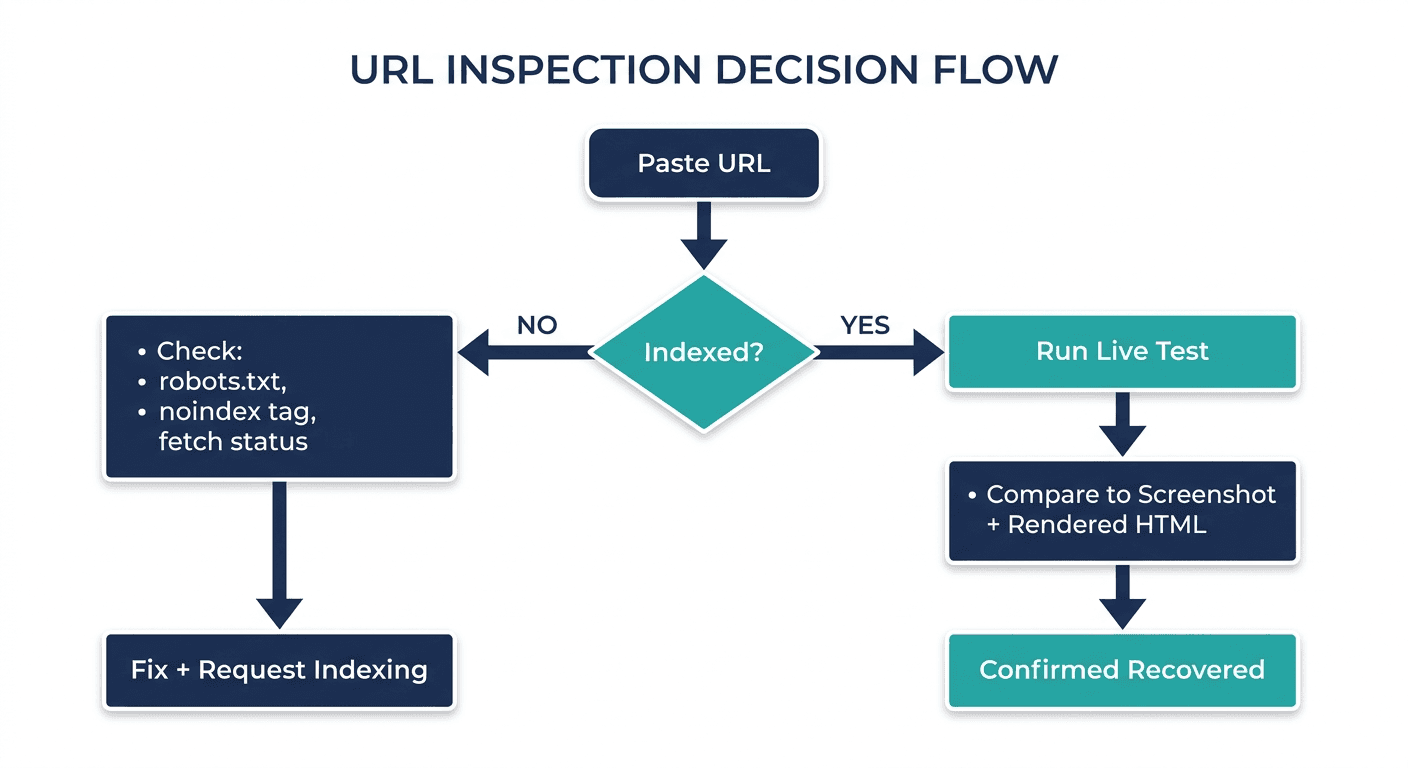
If the live test comes back clean and the indexed report still shows a problem, that gap itself is diagnostic: it means you already fixed the issue, and you are just waiting on a recrawl. That is the moment to use "Request Indexing," which asks Google to prioritize a fresh crawl of that specific URL. It is not a guarantee of immediate reindexing, and it is not meant for bulk use across dozens of URLs, but for a single important page after a real fix, it is the right tool.
Five Practical Ways to Use It
1. Confirm a fix actually worked before you wait on a recrawl. You corrected a canonical tag, removed a stray noindex, or unblocked a resource in robots.txt. Instead of waiting to see if the indexed report eventually updates, run the live test immediately. If it comes back clean, request indexing and move on with confidence instead of a guess.
2. Catch a canonical mismatch before it costs you a ranking page. If "User-declared canonical" and "Google-selected canonical" disagree, Google is telling you it thinks a different URL is the authoritative version of this content, often because of duplicate or thin content across near-identical pages. This is worth checking any time two URLs on your site could plausibly serve the same query.
3. Debug a page that renders fine for humans but not for Googlebot. Compare the rendered HTML and screenshot in the live test against what you see in an actual browser. A content block that depends on a slow API call, a script blocked by robots.txt, or a client-side render that times out before Googlebot stops waiting will all show up as a gap between what a person sees and what the screenshot shows.
4. Diagnose why a specific important page is not indexed. Work down the Page indexing fields in order: was it discovered, was crawling allowed, did the fetch succeed, is indexing allowed, does the canonical point where you expect. Nine times out of ten, the answer is in the first field where something looks wrong.
5. Spot a pattern across pages, not just one URL. The tool only inspects one URL at a time, but if you are pulling the same answer (blocked by robots.txt, unexpected canonical, failed fetch) on multiple pages you check, that is a site-wide configuration problem, not four unrelated coincidences. A misconfigured CMS template or a robots.txt rule that is broader than intended usually explains a repeated pattern faster than four separate one-off bugs do.
What the Tool Cannot Tell You
Three limits are worth knowing before you rely on it for something it was not built for:
- It is not a ranking tool. "URL is on Google" is a yes/no on eligibility. It tells you nothing about position, impressions, or clicks for any keyword. For that, you need the Performance report, filtered by page, which is the actual source for whether a page is winning or losing visibility over time.
- It checks one URL at a time. There is no bulk mode in the UI for inspecting dozens of URLs at once (the URL Inspection API exists for that, with its own daily quota, and is a developer-facing tool rather than something you click through in the dashboard).
- A redirecting URL reports on the original, not the destination. If you inspect a URL that 301s somewhere else, the report describes the original URL's status. You have to separately inspect the destination to see how that page is actually indexed.
None of this makes the tool less useful. It just means it answers "can Google see and index this specific page" and nothing broader than that. Pair it with the Performance report for ranking questions and a crawler like Screaming Frog for site-wide technical audits.
Where This Fits Into a Bigger SEO Workflow
The URL Inspection tool answers a narrow, specific question well: is this one page crawlable, renderable, and indexed the way I expect. That makes it the right first stop when a page suddenly stops showing up, or when you have just shipped a fix and want proof before you move on.
It is not built to watch your whole site for you, though, and checking pages one at a time does not scale once you are managing more than a handful of URLs. That is the gap Murkuz is built around: rather than manually pasting URLs into Search Console after every content change, Murkuz pulls your GSC data automatically every day and flags declining pages before you would think to go check them individually. When a fix is published, the same daily GSC pull confirms whether the page actually recovered, so you are not relying on memory to go back and re-inspect it a few weeks later.
If you are already comfortable running individual inspections by hand and want to see how the connected version works across an entire site rather than one URL at a time, the Search Console integration page walks through exactly what data flows in and what Murkuz does with it.
FAQ
What does the URL Inspection tool do?
It shows you how Google's systems see one specific URL: whether it is indexed, when it was last crawled, whether crawling and indexing are allowed, which canonical URL Google selected, and what structured data was detected. It also offers a live test that checks the current version of the page in real time, separate from the indexed report.
How do I check if a URL is indexed?
Paste the full URL into the inspection bar at the top of Search Console. You will get "URL is on Google" if it is indexed and eligible to appear in search, or "URL is not on Google" with a reason if it is not. Remember that "on Google" means eligible to appear, not currently ranking; for actual ranking data, use the Performance report filtered to that page.
Why does Google show a different canonical than the one I set?
Google chooses its own canonical when it believes another URL is a better representative of the same content, which usually happens with duplicate, near-duplicate, or thin content spread across multiple URLs. Check whether the page Google selected genuinely overlaps with yours; if it does, consolidate the content or fix your canonical tags to match Google's read of the situation.
How long does it take for "Request Indexing" to work?
There is no fixed timeline. It asks Google to prioritize a recrawl of that URL sooner than it otherwise would, but it does not guarantee immediate reindexing, especially on sites Google crawls infrequently. It works best on a single important page after a genuine fix, not as a way to force many URLs into the index at once.
Can I inspect multiple URLs at the same time?
Not in the Search Console interface, which only inspects one URL per request. Google offers a separate URL Inspection API with a daily quota for programmatic, bulk checks, which is a developer tool rather than something you use directly in the dashboard.
Junaid Khalid is the founder of Ertiqah and the builder of Murkuz. He has run SEO as the first growth channel across his own SaaS products, which means plenty of hours spent exactly here, one URL at a time in Search Console, before automating the parts of that routine worth automating.